Empowering mums with essential IT tech tools and services
In today’s digital age, technology is an integral part of our daily lives, and for mums like me, it can be a powerful ally in managing both personal and professional responsibilities. From coordinating family schedules to managing remote work, you can benefit significantly from leveraging the right IT support and tech tools. This article explores the essential tech tools and services that can empower you, making your life easier and more organised.
The modern mum’s tech landscape
Modern mums juggle a myriad of responsibilities, often balancing career demands with family duties. In this context, technology can offer solutions that simplify and streamline everyday tasks. Whether it’s organising family activities, ensuring kids’ safety online, or managing household finances, the right tech tools can be game-changers.
Essential tech tools for mums
1. Calendar and scheduling apps
Keeping track of multiple schedules can be challenging. Calendar and scheduling apps like Google Calendar, Cozi, and Microsoft Outlook are invaluable for managing appointments, school activities, work meetings, and social events. These apps allow you to create shared family calendars, set reminders, and sync schedules across devices, so everyone stays on the same page.
2. Task management tools
Managing a household involves countless tasks, from grocery shopping to paying bills. Task management tools like Todoist, Trello, and Wunderlist help you stay organised by allowing you to create to-do lists, set deadlines, and prioritise tasks. These tools can also be shared with family members, so you can collaborate and ensure everyone contributes to household chores.
3. Meal planning and grocery apps
Planning meals and managing grocery lists can be time-consuming. Apps like Mealime, Yummly, and AnyList simplify meal planning by offering recipe ideas based on dietary preferences and generating grocery lists. These apps help you save time, reduce food waste, and ensure healthy meals for the family.
4. Parental control software
Ensuring children’s safety online is a top priority. Parental control software like Norton Family, Qustodio, and Kaspersky Safe Kids helps monitor and manage kids’ online activities. These tools allow you to set screen time limits, block inappropriate content, and track your child’s online behaviour, providing peace of mind.
5. Financial management tools
Managing household finances is crucial for maintaining a balanced budget. Financial management tools like Mint, YNAB (You Need a Budget), and Personal Capital help you track expenses, create budgets, and monitor savings goals. These apps offer a clear overview of financial health, enabling better decision-making and financial planning.
IT support services for mums
Beyond individual tech tools, access to reliable IT support services is essential for addressing technical issues and ensuring smooth operation of devices and software. Here are some key IT support services that can benefit you:
1. Technical support helplines
Technical support helplines, provided by companies like Geek Squad, Best Buy, and local IT service providers, offer assistance with troubleshooting, device setup, and software installation. These services are particularly useful for resolving technical issues that may arise unexpectedly, ensuring minimal disruption to daily activities.
2. Remote IT support
Remote IT support services allow technicians to diagnose and fix issues remotely, providing convenience and quick resolution. Companies like TeamViewer and LogMeIn offer remote support solutions that enable you to receive technical assistance without the need for in-person visits, saving time and hassle.
3. Cybersecurity services
Protecting personal and family data is critical in an increasingly digital world. Cybersecurity services, such as those offered by Norton, McAfee, and Bitdefender, provide comprehensive protection against viruses, malware, and online threats. These services include antivirus software, secure browsing tools, and identity theft protection, safeguarding sensitive information.
4. Device maintenance and optimisation
Regular maintenance and optimisation of devices can extend their lifespan and improve performance. IT support services often include routine check-ups, software updates, and performance optimisation to ensure devices run smoothly. This proactive approach helps prevent technical issues and maintains the efficiency of devices.
5. Tech education and training
Understanding how to effectively use technology can empower you to make the most of available tools. Tech education and training services, such as online courses from platforms like Coursera, Udemy, and Khan Academy, offer tutorials on various software, apps, and digital skills. These resources help you stay informed and confident in using technology to its full potential.
The benefits of empowering mums with IT support
Empowering you with the right tech tools and IT support services offers numerous benefits:
1. Enhanced efficiency
Tech tools streamline daily tasks, allowing you to manage your time more effectively. Scheduling apps, task management tools, and meal planning apps reduce the burden of organising multiple responsibilities, leading to increased efficiency.
2. Improved safety and security
Parental control software and cybersecurity services protect children online and safeguard family data. These tools provide peace of mind, knowing that safety measures are in place to mitigate potential risks.
3. Financial savings
Financial management tools help you maintain a balanced budget, track expenses, and achieve savings goals. Effective financial planning can lead to significant cost savings and improved financial stability.
4. Reduced stress
Access to reliable IT support services minimises the stress associated with technical issues. Knowing that help is available for troubleshooting and device maintenance ensures that technical problems are resolved quickly and efficiently.
5. Increased confidence
Tech education and training empower you with the knowledge and skills to use technology effectively. This increased confidence translates to better management of both personal and professional responsibilities.
Final thoughts
In today’s fast-paced digital world, using essential tech tools and IT support services is crucial for managing the complexities of parenthood and professional life. From scheduling apps to cybersecurity services, the right technology can streamline tasks, enhance safety, and provide peace of mind. By leveraging these resources, you can navigate your daily responsibilities with greater ease and efficiency, ultimately leading to a more balanced and fulfilling life.
*Collaborative feature post*
Nextbase 622GW dash cam: The secret weapon for school runs
Picture this.
It’s snowing/raining/sleeting and the roads are unsalted. Hoards of cars weave in and out of few unoccupied parking spaces and traffic is building up on both sides. One narrowly misses the other as both cars compete to push through the open bays. Horns are glaring in unison.
This is a regular morning school run for me, no matter the weather.
Every morning we leave the house at 7.30am to beat the inevitable traffic and we’re on the road until I take my fourth to playgroup around 9.30am.
One particular day felt crazier than normal. It had been snowing yet there were more cars on the road. As we turned a corner, a 4×4 hurled towards us and veered onto our lane. The driver quickly swerved back at a particularly angled part of the road but not before we almost hit the curb on our side. As we ventured further, we had to emergency brake at a car which stopped abruptly in front of us, almost causing the car behind to crash into us – all in the space of five minutes!
When we arrived at the second school run pit stop, a rather rude man with a Tesla blocked us in, then proceeded to eff and blind at me in front of the kids because I told him he was parked on a single yellow line and we couldn’t get out to get to our third stop. He moved his car eventually, but that didn’t stop us from being late.
When we arrived at the third stop, a car behind us reversed onto the road behind and almost got hit by a truck. The noise was enough to wake the other side of the equator. To say I had nervous shock when I got home was an understatement.
Of course it’s not always like this, but the school run can be tiring and chaotic at the best of times. If I had a pound for every time I shouted, ‘Learn to drive!’, or, ‘Indicate!’ at an oncoming car, I wouldn’t need to drive my kids to school anymore, I’d be retiring on an island and I’d have my own school rules! I’ve also uttered, ‘If only I had recorded the license plate,’ many a time.
Well now I can!
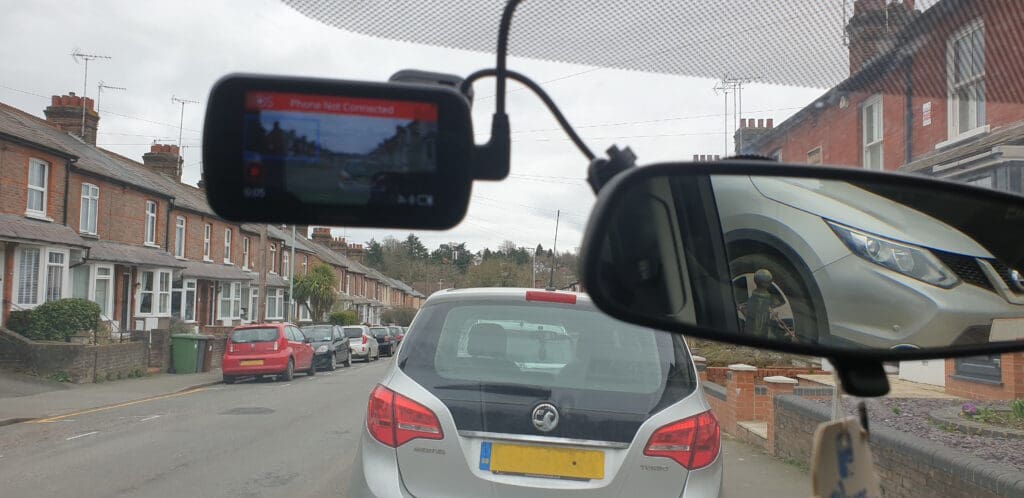
Are you tired of the school run turning into a chaotic, stressful mess every morning? Fear not, because I have the solution to all your road rage problems. Introducing the Nextbase 622GW dash cam which has become my new best friend on the road.
The Nextbase 622GW dash cam can provide added safety and peace of mind for parents while driving on the road, by recording footage, providing emergency assistance, and alerting drivers to potential hazards. It can even spot and record those pesky hit and runners while you’re parked and away from your car. #nowheretohide
Read on for the full Nextbase 622GW dash cam review and how it can help you on the school run too.
The Nextbase 622GW dash cam is a high-end dashboard front view camera designed for cars. It is a premium model in the Nextbase range and is equipped with advanced features and technology, including:
4K dash cam video recording: The camera can provide excellent image quality using ultra-high-definition video footage at a resolution of 3840 x 2160 pixels.
Touch screen interface: The camera features a 3-inch touch screen display that allows for easy menu navigation and playback of recorded footage.
Built-in Wi-Fi connectivity: The camera can connect to Wi-Fi networks, enabling users to transfer footage to a smartphone or tablet for sharing or editing.
Emergency SOS feature: In the event of an accident, the camera can automatically alert emergency services and provide precise location sharing.
Intelligent Parking Mode: The dashcam can monitor your vehicle while it is parked, using motion detection to trigger recording if someone approaches or collides with your car.
Alexa built-in: The Nextbase 622GW dash cam has Alexa built-in so you can get directions, play music, make calls, and more, all hands-free.
Image stabilisation: The camera has advanced image stabilisation technology to help reduce camera shake and ensure smooth footage.
Multiple safety features: The Nextbase 622GW dash cam also comes equipped with several safety features, such as lane departure warnings, collision avoidance systems, and driver fatigue alerts.
What do you get in the Nextbase 622GW bundle? Unboxing the Nextbase GW K Dash Cam
The contents of the Nextbase 622GW bundle may vary depending on the retailer or seller. However, typically, the bundle should include:
The Nextbase 622GW Dash Cam which is the main component of the package.
A power cable to connect the dash cam to the car’s power source.
A Click&Go PRO mount for easy installation and removal of the dash cam from the car’s windscreen.
Some bundles may include a rear camera module that can be connected to the dash cam for recording footage of the rear view. Ours was included in this particular bundle.
A MicroSD Card for storing the footage recorded by the dash cam. We received a 256gb U3 microSD card.
A quick start guide that provides basic instructions for setting up and using the dash cam.
Other accessories such as a carry case, screen protector, or cleaning cloth. We also received a sticker to place on the car’s rear or side window to warn other drivers that we are recording around us.
The Nextbase 622GW is a highly advanced dash cam with features that include 4K Ultra HD recording, built-in GPS, Wi-Fi, Bluetooth, and emergency SOS response. It also includes Intelligent Parking Mode for added security and peace of mind. Below are the full specs of the Nextbase 622GW dash cam:
4K Ultra HD (3840 x 2160) resolution at 30fps, 1080p Full HD at 120fps, 720p HD at 240fps
140-degree wide-angle lens with six-layer glass and f/1.3 aperture
3-inch HD IPS touch screen display
Built-in GPS module for location tracking and speed monitoring
Built-in Wi-Fi for easy transfer of footage to a smartphone or tablet
Built-in Bluetooth for hands-free calling and voice control
Emergency SOS response system that can automatically call for emergency services in the event of an accident
Motion detection and impact sensing to automatically record footage when the car is parked
MP4 video format
H.265 (HEVC) video codec
Supports up to 128GB microSD cards (not included)
500mAh Lithium-ion battery
12-24V DC power supply via included car power cable
98mm x 45mm x 37mm height dimensions
Weighs 128g
How to use Nextbase 622GW dash cam
There are a lot of components so make sure you familiarise yourself with the user manual and manufacturer’s instructions so you use the Nextbase 622GW dash cam properly. Below are the steps on how to install Nextbase 622GW dash cam, including the rear camera too.
First, mount the dash cam on your car’s windshield using the Click&Go PRO mount included. Make sure the dash cam is securely attached by pressing the mount firmly against the glass and twisting the base to lock it in place. The ideal location should provide an unobstructed view of the road ahead and not interfere with your driving.
Connect the dash cam to your car’s power source using the included power cable. Route the cable along the edge of the windshield, tucking it behind the car’s headliner and down the side of the dashboard. Connect the other end of the cable to your car’s power outlet, such as the cigarette lighter socket. Attach the dash cam to the mount by sliding it down onto the mount until it clicks into place. The dash cam should turn on automatically when your car starts up.
Use the dash cam’s touch screen interface to adjust the camera settings to your preferences. You can choose options such as video resolution, frame rate, and exposure. Adjust the camera angle to ensure that it is aimed in the right direction and provides a clear view of the road ahead.
The dash cam will start recording automatically when you start driving. You can also manually start and stop recording using the touch screen interface or voice commands.
You can review the footage recorded by the dash cam on its touch screen or transfer it to your smartphone or computer using the built-in Wi-Fi connectivity or Micro SD card.
The Nextbase 622GW dash cam comes with additional features such as Emergency SOS, Intelligent Parking Mode, and Alexa built-in. You can use these features to enhance your driving experience and ensure your safety on the road.
Always make sure to comply with local laws and regulations regarding the use of dashboard cameras while driving.
How to remove Nextbase 622GW dash cam from mount
Here are the general steps to remove the Nextbase 622GW dash cam from its mount:
Before removing the dash cam from its mount, turn it off by pressing and holding the power button until the screen turns off.
Locate the locking mechanism on the Click&Go PRO mount and release it by pulling the locking lever or pressing the release button, depending on the specific model.
Once the locking mechanism is released, gently lift the dash cam off the mount by pulling it upwards and away from the windshield. Be careful not to tug too hard or apply excessive force to avoid damaging the mount or dash cam.
Once the dash cam is removed from the mount, disconnect the power cable from the dash cam’s power socket.
Store the dash cam in a safe place, such as the carrying case provided or protective cover, to prevent damage or scratches.
Other Nextbase 622GW safety features – Extreme Weather Mode
The Nextbase 622GW Extreme Weather Mode is a feature that is designed to improve the image quality of the dash cam when driving in extreme weather conditions such as heavy rain, snow, or fog.
When Extreme Weather Mode is activated, the camera adjusts its exposure and contrast settings to compensate for the reduced visibility and lighting conditions. This helps to enhance the details and clarity of the video footage, making it easier to see and interpret what is happening on the road.
The Extreme Weather Mode also adjusts the camera’s image stabilisation and anti-glare settings to minimise the effects of weather-related issues such as windshield glare, snow or rain accumulation on the lens, or the vibration of the vehicle caused by strong winds or rough roads.
Nextbase 622GW does include a slow-motion feature.
This feature allows you to playback video footage in slow motion, which can be useful for reviewing details of an incident or for analysing driving behavior.
The slow-motion feature on the 622GW can be accessed through the camera’s playback menu, and can slow down footage by up to 10 times the original speed. This allows you to view the footage in detail and identify important information, such as the speed of the vehicles involved or the actions of pedestrians or other road users.
Nextbase 622GW problems
Like any electronic device, the Nextbase 622GW dash cam may experience problems or issues during use. Here are some common problems that users may encounter with the Nextbase 622GW dash cam:
You may experience connectivity issues when trying to transfer footage from the dash cam to a smartphone or computer. This can be resolved by ensuring the Wi-Fi connection is stable and the correct settings are selected.
You may experience errors with the Micro SD card, such as a “card error” message or difficulty reading the card. This can be resolved by checking the card is compatible and properly inserted into the dash cam.
There may be issues with the dash cam’s power supply or battery life. This can be resolved by ensuring the power cable is securely connected and the battery is fully charged.
The Click&Go PRO mount may not stick properly to the windshield or it isn’t securing the dash cam properly. This can be resolved by ensuring the windshield is clean and free from obstructions and that the mount is installed correctly.
The dash cam can overheat in hot conditions or direct sunlight. This can be resolved by parking in shaded areas or investing in a sunshade for the windshield.
There may be issue with the app’s settings in that it hibernates when not in use. We are still trying to resolve this issue with my Android phone.
If you experience any issues with your Nextbase 622GW dash cam, it is recommended to refer to the user manual or contact Nextbase customer product support for assistance.
Nextbase 622GW dash cam best price
The Nextbase 622GW price can vary depending on the retailer, availability, and any ongoing promotions or discounts. It is always recommended to shop around and compare prices from various retailers to find the best deal.
You can check the prices of the Nextbase 622GW dash cam on popular online retailers such as Amazon, as well as the official Nextbase website. You may also want to check for any special deals or promotions during holiday periods such as Black Friday or Cyber Monday.
The Nextbase 622GW dash cam can help parents stay safe on the road in several ways. Here are some ways that the dash cam can benefit parents:
The Nextbase 622GW dash cam records evidence in the event of an accident
The Nextbase 622GW dash cam can record high-quality footage of any incidents that occur while driving, such as accidents or near-misses. This footage can be used as evidence in the event of an insurance claim or legal dispute, helping parents prove their innocence and avoid potential penalties or legal consequences.
The Nextbase 622GW dash cam provides emergency assistance
The Nextbase 622GW dash cam’s Emergency SOS feature can automatically contact emergency services and provide the driver’s location in the event of a severe impact, such as a serious accident or medical emergency.
The Nextbase 622GW dash cam prevents accidents
The Nextbase 622GW dash cam is equipped with several safety features, such as lane departure warnings and collision avoidance systems that can alert drivers to potential hazards on the road and help them avoid accidents.
The Nextbase 622GW dash cam has built-in Alexa
The Nextbase 622GW has Alexa built-in so parents can get directions, play music, make calls, and more, all hands-free without taking their eyes off the road.
Added bonus – The Nextbase 622GW dash cam can monitor inexperienced drivers
If parents are supervising a newly licensed teenage driver, the dash cam can be used to monitor their driving behaviour and provide feedback on areas for improvement.
Are dash cams worth the expense and hassle of installing and what is the best way to setup a dash cam in a car?
Dash cams can be a worthwhile investment for several reasons. They can provide valuable evidence in the event of an accident or other incident on the road, help deter theft or vandalism, and even capture interesting or scenic moments during your travels.
Dash cams are typically easy to install and require minimal hassle. They can be mounted on the windshield or dashboard with a suction cup or adhesive pad and plugged into the car’s cigarette lighter or USB port. Some models may also require hardwiring for more advanced features such as parking mode or continuous recording.
Overall, the benefits of having a dash cam in your car can outweigh the expense and hassle of installation. Just make sure to follow the manufacturer’s instructions and local laws regarding the use of dash cams while driving.
What other dash cams should you consider?
Nextbase is a popular brand of dash cams that offers a range of models with various features and price points. Here are some Nextbase dash cams you may want to consider:
Nextbase 522GW – This is a high-end dash cam with features such as 1440p HD video recording, built-in Wi-Fi, GPS, and Alexa integration.
Nextbase 422GW – This is a mid-range dash cam with similar features to the 522GW but with a slightly lower resolution of 1080p HD video recording.
Nextbase 222 – This is a budget-friendly option with 1080p HD video recording, a compact design, and easy installation.
Nextbase 312GW – This is a popular mid-range dash cam with 1080p HD video recording, built-in Wi-Fi, and GPS.
Ultimately, the best dash cam for you will depend on your needs and budget.
Why choose the Nextbase 622GW dash cam over other dash cams?
The Nextbase 622GW is a highly rated dash cam that is considered by many to be one of the best on the market.
This bad boy is packed with features that will make your daily commute smoother than a baby’s bottom. With its crystal-clear 4K resolution and advanced night vision, you can capture every detail of your journey, no matter how dark or gloomy it may be outside.
But that’s not all – the Nextbase 622GW also comes equipped with intelligent parking mode, which means you can park up and leave your car knowing that it will record any potential incidents while you’re away. So if someone decides to reverse into your vehicle or attempt a break-in, you’ll have evidence at hand to show the authorities.
And let’s not forget about the safety aspect of this nifty device. With its Emergency SOS feature built in, you can rest assured that help is just a button press away should anything go wrong during your travels. Plus, its automatic emergency response notifications mean that should an incident occur while driving alone or with passengers, emergency services will be alerted immediately for rapid response.
The Nextbase 622GW dash cam can also prevent arguments between siblings fighting over who touched who first during the car ride!
So there you have it folks – the Nextbase 622GW dash cam is more than just a camera; it’s a lifesaver for busy families constantly on-the-go during school runs. Protect yourself from reckless drivers and keep calm throughout those hectic mornings with this indispensable gadget by your side.
For a full list of features and specs on the Nextbase 622GW dash cam, visit Nextbase’s website here.
Why will the dashcam screen go black after recording for some time?
There could be a few reasons why a dash cam’s screen may go black after recording for some time:
Many dash cams have a power-saving feature that automatically turns off the screen after a certain amount of time to save battery power. This is a normal function of the dash cam and is designed to prolong the life of the device’s battery.
If the dash cam becomes too hot due to prolonged use or exposure to direct sunlight, it may shut off the screen to prevent damage to the device. In this case, it is recommended to move the dash cam to a cooler location or turn it off for a while to allow it to cool down.
If the dash cam’s memory card becomes full, it may stop recording and turn off the screen. This is a safety feature to prevent the device from overwriting important footage. In this case, you will need to transfer the recorded files to a computer or other storage device to free up space on the memory card.
If the dash cam’s screen goes black after recording for some time and none of the above reasons apply, there may be an issue with the device itself. In this case, contact the manufacturer for assistance or have the device checked by a professional.
How to fit Nextbase 622GW dash cam?
Follow the instructions above to correctly install the Nextbase 622GW dash cam.
Once the dash cam is installed, it should begin recording automatically when you start your vehicle. Make sure to regularly check the dash cam to ensure it is recording properly and that the memory card has enough space to store your recordings.
How long does a 256GB SD card last in a dash cam?
The lifespan of a 256GB SD card in a dash cam will depend on several factors, such as the quality of the card, the type of dash cam, and the frequency of use.
Generally speaking, SD cards have a limited number of write cycles before they start to fail. This means the more frequently the card is written to, the shorter its lifespan will be. Dash cams tend to write data to the SD card continuously, which can put a strain on the card and reduce its lifespan.
Assuming a high-quality SD card and a typical dash cam usage pattern, a 256GB SD card in a dash cam could last anywhere from several months to a few years. However, it’s worth noting that SD cards can fail unexpectedly, so it’s always a good idea to back up important footage regularly and replace the card periodically to minimise the risk of data loss.
How many hours can you record on a 64GB dash cam?
The amount of recording time you can get on a 64GB dash cam will depend on several factors, including the video resolution and bitrate settings of the dash cam. Here are some estimates based on common video settings:
1080p resolution at 30 frames per second and a bitrate of 15Mbps: Approximately 8 hours of recording time on a 64GB card.
1080p resolution at 60 frames per second and a bitrate of 20Mbps: Approximately 5.5 hours of recording time on a 64GB card.
1440p resolution at 30 frames per second and a bitrate of 25Mbps: Approximately 4.5 hours of recording time on a 64GB card.
4K resolution at 30 frames per second and a bitrate of 60Mbps: Approximately 1.5 hours of recording time on a 64GB card.
It’s important to note that these estimates are just rough guidelines, and actual recording time may vary depending on a number of factors such as the specific dash cam model, the temperature and humidity of the environment, and how frequently the dash cam is recording over existing footage (loop recording). Additionally, it’s always a good idea to periodically review and offload footage from your dash cam to a computer or other storage device to ensure that you have enough space for new recordings.
Is 32GB enough for a dash cam?
Whether 32GB is enough for a dash cam will depend on several factors, such as the resolution and bitrate settings of the camera, the frequency of use, and how often you transfer files off the card. Here are some general guidelines:
For a dash cam recording at 1080p resolution at 30 frames per second and a bitrate of 15Mbps, a 32GB card could provide approximately 4 hours of recording time before it becomes full.
If your dash cam records at a higher resolution or frame rate, or if you prefer to set a higher bitrate, then the amount of recording time you can get on a 32GB card will be reduced accordingly.
If you don’t use your dash cam frequently, or if you transfer files off the card regularly, then a 32GB card may be sufficient for your needs.
However, it’s important to note that dash cams record continuously and overwrite old footage once the card becomes full (in a loop recording mode), so you may not have access to all of the footage you’ve recorded if you don’t transfer files off the card regularly. It’s generally recommended to use a card with at least 64GB of storage capacity if possible, to ensure that you have enough space for your recordings and to minimise the need for frequent file transfers.
What is used for Wi Fi on a dashcam and how does it work? Which dashcam models are equipped with Wi Fi?
Dash cams equipped with Wi-Fi use the Wi-Fi module to create a wireless network that can be used to transfer files, adjust settings, and view recordings on a smartphone or tablet.
When you connect your smartphone or tablet to the Wi-Fi network created by the dash cam, you can use a companion app to access the dash cam’s features and settings. Depending on the dash cam model and the features supported by the app, you may be able to:
View live video from the dash cam
Download and view recorded footage
Adjust video settings
Format the SD card
Update the firmware
There are many dash cam models that are equipped with Wi-Fi, including popular brands such as BlackVue, Thinkware, and Viofo.
It’s worth noting that not all dash cams with Wi-Fi have the same features or capabilities, so it’s important to research different models and read reviews to find one that fits your needs.
How do I install a dash cam without a cigarette lighter?
If your vehicle doesn’t have a cigarette lighter or accessory socket, you can still install a dash cam by using a hardwire kit. Here’s how to do it:
Purchase a hardwiring kit for your dash cam. This kit should include a cable that connects to the dash cam, a fuse tap, and a ground wire.
Locate your vehicle’s fuse box. This is usually located in the driver’s side footwell or under the hood.
Find a fuse that is only powered when the ignition is turned on. This is important to prevent the dash cam from draining your vehicle’s battery when the engine is turned off.
Insert the fuse tap into the selected fuse location. The fuse tap should have two slots: one for the original fuse and one for a new fuse. Insert the original fuse into the top slot, and the new fuse (which should be included in your hardwiring kit) into the bottom slot.
Connect the red wire from the hardwiring kit to the new fuse in the fuse tap.
Connect the black wire from the hardwiring kit to a metal ground point in the vehicle. This could be a metal bolt or screw in the vehicle’s frame.
Connect the cable from the dash cam to the hardwiring kit.
Test the installation by turning on the ignition and ensuring that the dash cam powers on.
It’s important to note that hardwiring your dash cam may require some knowledge of your vehicle’s electrical system, so if you’re not comfortable with this type of installation, it’s best to consult a professional or seek help from a knowledgeable friend. Additionally, be sure to check your local laws and regulations regarding the use of dash cams and their installation before attempting this installation.
Can I use a dashcam as a webcam?
In general, most dash cams are not designed to be used as webcams, and their functionality is limited to recording and saving video files to an SD card. However, some dash cam models do have a webcam function that allows them to be used as a live streaming camera.
To use a dash cam as a webcam, you will typically need to connect it to a computer via USB cable and install any necessary drivers or software. The specific steps will depend on the make and model of your dash cam and the software you plan to use for streaming.
It’s worth noting that using a dash cam as a webcam may not result in optimal video quality, as most dash cams are optimised for recording video in a moving vehicle rather than streaming video in real-time. Additionally, dash cams may not have the same features or settings as dedicated webcams, such as autofocus or manual focus, which could impact the quality of the video stream.
If you’re looking for a camera to use as a webcam, it’s recommended to purchase a dedicated webcam that is designed for this purpose, as they typically offer better video quality and more robust features and settings.
Do I have to use WiFi to use a dash cam?
No, you do not have to use Wi-Fi to use a dash cam. Dash cams can typically function without Wi-Fi, and will still be able to record footage to an SD card.
However, Wi-Fi can be a useful feature for accessing and managing dash cam footage. With Wi-Fi, you can transfer files from the dash cam to your smartphone or tablet, adjust settings, and view live or recorded video from the dash cam. This can be especially useful if you need to quickly share footage with others or if you want to check on your vehicle remotely.
If your dash cam doesn’t have Wi-Fi, you can still access the footage by removing the SD card from the camera and transferring the files to a computer or other device. Some dash cams also include a built-in screen that allows you to view footage directly on the device, without the need for Wi-Fi or an external device.
Ultimately, whether or not you need Wi-Fi in a dash cam will depend on your specific needs and preferences. If you value the convenience and flexibility of being able to access footage remotely or transfer files wirelessly, then a dash cam with Wi-Fi may be worth considering. However, if these features aren’t important to you, then a dash cam without Wi-Fi may be a more affordable and practical option.
Why don’t newer cars have dash cams by default?
Other questions asked were:
Why don’t car manufacturers offer built in dash cams as an option?
There are several reasons why newer cars do not typically come equipped with dash cams by default:
Adding a dash cam to a vehicle can increase the cost of the vehicle, and manufacturers are always looking for ways to keep costs down to remain competitive.
Some manufacturers may be hesitant to include a dash cam as standard equipment because they may be held liable for any footage captured by the camera that could potentially incriminate the driver or vehicle owner.
Dash cams can capture footage of people, vehicles, and other objects in the vicinity of the vehicle. Some people may have concerns about privacy and may not want a camera recording their actions or whereabouts.
Different countries and regions have different laws and regulations regarding the use of dash cams. Some countries, such as Russia and South Korea, have laws that encourage or even mandate the use of dash cams, while other countries, such as Austria and Luxembourg, have laws that prohibit the use of dash cams in certain situations.
Despite these factors, the popularity of dash cams has been increasing, and many drivers are now choosing to install them in their vehicles as an aftermarket accessory. As the technology advances and becomes more affordable, it’s possible that we may see more vehicles equipped with dash cams in the future.
Can the camera system on a car be converted into a dashcam type of recording?
In some cases, the camera system on a car can be converted into a dashcam-style recording system, but it would depend on the specific make and model of the vehicle and the type of camera system it uses.
Some newer cars have cameras built into the vehicle that are designed to provide a 360-degree view of the car’s surroundings, or to assist with parking and reversing. These cameras can be repurposed to provide a dashcam-style recording system, but it may require additional hardware and software to capture and store the footage.
Other vehicles may have cameras built into the rearview mirror or windshield that are designed for driver assistance features, such as lane departure warning or forward collision warning. While these cameras may be able to capture footage of the road ahead, they may not be optimised for recording video for extended periods of time, and may not be able to capture a wide-angle view of the vehicle’s surroundings.
It’s worth noting that converting a car’s camera system into a dashcam-style recording system would likely require some technical knowledge and expertise, and could potentially void the vehicle’s warranty or cause other issues if not done properly. If you’re interested in using your car’s camera system for recording purposes, consult a professional or seek guidance from the manufacturer to ensure that the modification is done safely and effectively.
On dash cams, how long can they record before overwriting and how easy is it to delete the recordings?
The amount of time a dash cam can record before overwriting old footage depends on the size of the SD card used, the video resolution and bitrate settings of the camera, and the length of time the camera is in use each day. Dash cams typically have a loop recording feature that automatically overwrites the oldest footage on the SD card once it becomes full.
For example, a 64GB SD card recording at 1080p resolution at 30 frames per second and a bitrate of 15Mbps may be able to record for approximately 8 hours before the oldest footage is overwritten. This time will decrease if the resolution and bitrate are increased or if the camera is used for longer periods of time each day.
To delete recordings from a dash cam, most cameras have a delete function built into the menu system. This function may allow you to delete individual recordings or to format the entire SD card to clear all recordings at once. The exact process for deleting recordings will depend on the make and model of the dash cam, but it should be a straightforward process that can be done using the camera’s built-in controls or a companion app on your smartphone.
Some dash cams also have a “lock” or “protect” feature that allows you to prevent specific recordings from being overwritten during the loop recording process. This can be useful if you want to preserve important footage, such as in the event of an accident. These locked recordings can be deleted manually using the camera’s delete function or by formatting the SD card.
Do dash cameras work when the car is off?
Other questions asked were:
Can I leave a dashcam thats plugged into a 12V power outlet on when I shut my car off and leave it for a few hours?
Most dash cameras are designed to continue recording even when the car is turned off, as long as the camera is connected to a power source that remains active when the ignition is turned off. However, some dash cameras may have a battery or capacitor that provides power for a short period of time after the car is turned off, after which the camera will shut down to conserve power.
The exact behaviour of the dash camera when the car is turned off will depend on the make and model of the camera, as well as how it is connected to the car’s power supply. If the camera is hardwired to the car’s battery or fuse box, it will typically continue to operate even after the ignition is turned off, unless the power supply is turned off manually or the battery is drained.
If the camera is powered by a cigarette lighter or accessory socket, it will stop recording when the ignition is turned off, unless the socket remains active even when the car is turned off.
It’s important to note that if a dash camera continues to operate when the car is turned off, it can drain the vehicle’s battery if left connected for an extended period of time. To prevent this, some dash cameras have a built-in low-voltage cutoff feature that will automatically shut down the camera if the battery voltage drops below a certain level, preventing the camera from draining the battery excessively. The Nextbase 622GW dash cam includes Intelligence Parking Mode which means it continues to record even when the vehicle is parked and turned off. For more information, see above.
Why do we need dash cameras with a GPS function?
Dash cameras with GPS functionality can provide several benefits:
Dash cameras with GPS can record the exact location of the vehicle at the time of recording, which can be useful in the event of an accident or other incident. This information can help to corroborate your account of what happened and may be useful in legal proceedings.
Dash cameras with GPS can also track the speed of the vehicle at the time of recording. This information can be useful in providing evidence of excessive speed or other driving behavior that may have contributed to an accident.
If you frequently drive in unfamiliar areas, a dash camera with GPS can be useful in tracking your route and helping you find your way back if you get lost.
Dash cameras with GPS can also be used as a security feature, as they can alert you if your vehicle is moved without your knowledge or if it is stolen.
Overall, the GPS function in dash cameras can provide additional context and information that can be useful in a variety of situations, including in the event of an accident, during legal proceedings, or for general navigation and security purposes.
Can my car dashcam recordings be used against me?
In some cases, dashcam recordings could be used against you in legal proceedings, depending on the circumstances of the incident being recorded.
For example, if you are involved in a car accident and the other party claims that you were at fault, the footage from your dashcam could be used as evidence to support or refute their claim. Similarly, if you are pulled over by law enforcement and the officer suspects you have committed a traffic violation or crime, footage from your dashcam could be used as evidence in court.
It’s important to note that while dashcam footage can be useful in providing evidence and supporting your account of what happened, it can also potentially incriminate you if you are shown to have committed a violation or crime. As such, it’s important to use your dashcam responsibly and to follow all traffic laws and regulations.
Additionally, there are laws and regulations in place that govern the use of dashcams and the recording of video and audio in public spaces. It’s important to be aware of these laws and to ensure that you are using your dashcam in a legal and responsible manner.
If I record someone on my dashcam running a red light or driving extremely dangerously can they be prosecuted?
If you record someone on your dashcam running a red light or driving dangerously, the footage could potentially be used as evidence to prosecute the driver for traffic violations or criminal offenses.
For the footage to be admissible in court, it would need to be clear and unambiguous, and would need to be properly time-stamped and geotagged to establish the location and time of the incident. Additionally, it’s important to follow all applicable laws and regulations regarding the use of dashcams and the recording of video and audio in public spaces.
If you do capture footage of someone committing a traffic violation or criminal offense, it’s recommended to report the incident to the appropriate authorities, such as the police or local law enforcement agency. They can use the footage to investigate the incident and potentially pursue charges against the driver.
It’s worth noting that dashcam footage is not always definitive evidence of an offense, and that other factors may need to be considered in determining whether an offense occurred. However, in many cases, dashcam footage can be a valuable tool for law enforcement and can help to promote safer driving behaviors on the road.
Do dashcams record sound?
Many dashcams do have the capability to record sound, but not all models have this feature. Dashcams that include a built-in microphone or have a port for an external microphone can record audio along with video. The Nextbase 622GW dash cam can record audio. The camera includes a built-in microphone that can record audio along with the video footage.
The ability to record audio can be useful in certain situations, such as in the event of an accident where there may be disputes about what was said or heard by the drivers involved. It can also be useful for recording conversations or other sounds that may be relevant to an incident.
However, it’s important to be aware of privacy laws and regulations regarding the recording of audio in public spaces. Depending on your jurisdiction, it may be illegal to record audio without the consent of the parties involved. Some dashcams may include a mute or privacy feature that allows you to turn off the microphone to avoid recording audio in certain situations.
If you’re unsure about the legality of recording audio with your dashcam, it’s recommended to consult local laws and regulations or to seek guidance from a legal professional.
*Motherhood Diaries was gifted the Nextbase 622GW dash cam in return for an honest review
codeSpark play app – coding activities for kids aged 5-10 years old
We can’t run or hide from it.
Our kids are growing up in a digital world full of screen time where vying to become a lawyer or a doctor is old news and a new wave of gamers and coders are paving the way with new jobs and new money (a lot of money!)
My ten-year-old has shown an avid interest in coding, and his goal is to create the next best game in ROBLOX. For him to realise his dreams, I need to find coding activities for kids which not only interest him but help him keep focused so he can reach his ambition; to own a Tudor House and a Lamborghini (because, well, why not?)
So should I fight the inevitable and put down the pen and paper?
No, not necessarily. I still believe an ‘old-school’ academic education is massively important for kids and pen and paper aren’t obsolete yet. But, I need to stop trying to ban screens and promote a balance of activities instead, where kids can enjoy the luxury of both. My eldest is starting secondary school and requires a Chromebook and my middle child has enrolled in a coding program which he thoroughly enjoys but still gets to read real life books with actual pages. So I’m happy.
Why coding for kids then?
With the influx of new technological jobs and side hustles turning into empires, it’s inevitable that coding is becoming a huge element. Businesses need web developers to build apps/software so consumers can get what they need at a click of a button.
Why am I talking about this?
These new job-worthy areas require people who can function a website or code to help facilitate these changes. So can you imagine how far your child can go if you start them in a coding program now?
Coding is becoming an entity on its own, with skillsets that rivals any other academic subject taught at school. So, in this article I’m going to talk about the importance of online coding activities for kids and how kids can learn how to code using an online programming app called codeSpark*, the number 1 learn-to-code app for kids aged 5-10.
PLUS!
Motherhood Diaries’ readers can enjoy a 30-day trial to try codeSpark* for your child, rather than the 7-day trial you normally get, so you can jump on and get started with hands-on coding activities for kids straight away.
Use this code: MOTHERHOOD30 to activate the trial. You can also click on the button below, which will automatically activate the code.
Coding is a language used to communicate with computers where you instruct the computer to perform a set of tasks. Kids can learn how to work with computers by following an online program like codeSpark which teaches them this new language.
Is learning to code necessary for future kids and students?
Absolutely. We live in an increasingly digitised world, so coding is already becoming a necessity. Kids who learn to code can then transfer their skills to all aspects of online problem-solving activities from a very early age. Plus, they’ll be ahead of the rat race when more jobs require coding as part of their role. Coding activities for kids are a great way to introduce kids to coding.
Are online coding classes effective for kids?
Online coding classes are definitely effective for kids aged 5+ because it helps to improve several skills. These include:
Code sequencing skills, which are building blocks to early literacy and mathematics
The earlier you expose the child to programming, the less likely they are to show gendered stereotypes about STEM careers (Science, Technology, English and Maths)
How good is free online coding for kids?
There are several free coding programs online with free coding activities for kids, but the best way to learn coding skills properly is through a structured approach with a quality app/teacher that offers hands on coding activities. So sometimes premium coding programs are better to help focus the child through a proven instructional pathway.
That’s not to say free coding for kids doesn’t exist. Lots of websites offer free coding games for kids, so your best bet here is to Google and check out the recommendations.
What is the best way to get your kids interested in coding?
My son became interested in coding for fun after he realised he’d need the skill to create the next best ROBLOX game. But, it was important to show him that coding isn’t just boring language; it inspires creativity, encourages exploration and taps into his passion to become a game developer.
By using a dedicated app to help teach your child to code, it will ignite an interest in STEM by showing how science and technology can be creative and fun.
Other proven ways to encourage kids into coding is to find a mentor who can help show the child the benefits of learning to code and using a program that teaches coding in a fun way, i.e codeSpark.
Or you can find a board game and amend it using a board game maker to relate more to coding.
Is there a fun way for kids to learn to code?
Yes! We’re going to talk about codeSpark in this article as codeSpark is the number one learn-to-code app for kids aged 5-10. With codeSpark, kids learn at their own pace so they can build confidence in their coding abilities. CodeSpark is also ad-free and COPPA-certified which promotes safe screen time too.
Studies show that codeSpark works!
After just 90 minutes of codeSpark Academy, 55% of kids showed increased confidence in problem-solving abilities. Kids develop fundamental coding, academic, and personal skills to thrive in both school and life.
So tell me more about codeSpark
Ok, so codeSpark is a fun and creative way to teach kids how to code through games, which includes loops, sequencing and game design. The app is based on a researched-backed curriculum from MIT and Princeton and it’s self-directed so no experience is required to start.
Learning with puzzles shows kids how to use the step-by-step order in which instructions occur to code and then those set of instructions are repeated. The puzzles reinforce the core computer science concept of sequencing and help kids to understand when an action or cue signals a new line of code to run. The puzzles also help kids work on executing their actions based on certain provisions.
Create with Game Maker
Once kids master the concepts learned in the puzzles, then they are ready to make their own game.
Mastering Automation – Pet Pals
Pet Pals uses creative problem solving through taking care of (and picking up after) lots of pets.
Mini-games
Mini-games help kids to learn additional concepts that may apply to STEM topics.
How do I set up a codeSpark account?
The codeSpark Academy play app has kindly asked me to share a unique codeSpark play code just for Motherhood Diaries’ readers. You click on the link here* to access your 30-day free trial, but make sure you use this link or the link in the blue button below to activate the full 30 days, otherwise you will only be able to access the 7-day trial.
Enter your registration details to get started and make sure the codeSpark free code is ‘MOTHERHOOD30’ in the promo code box. Once you’ve accessed your codeSpark student login, you enter the codeSpark dashboard and then you can select a coding activity. There are tons of fun coding games for kids from which to choose.
How to play codeSpark
It’s very simple. Pick your super-duper play academy name (you get to choose really awesome names!) and then you just get started with all the fun coding activities for beginners straight away.
What did we think of codeSpark for my ten-year-old?
My son really enjoyed the codeSpark app but it may have been a touch on the easy side for him as has completed a lot of the coding starter activities with another one-to-one coding programme he works with every week and he codes for fun!
He’s also 10 so on the top end of who codeSpark is geared towards but if your child just wants to code for fun or you’re looking for structured computer programming activities for kids, then codeSpark is definitely the app for you.
FAQ
Can you play codeSpark offline?
You can access offline printables which can be monitored by parents, but the coding exercises for kids are online.
I’m a 12-year-old interested in coding, but all the sites for kid coding seem like they’re for 5-year-olds and they teach nothing about coding. What are some recommendations?
codeSpark is aimed at 5-10-year-olds but includes games and computer activities for kids that inspire coding. If you’re looking for an older program, look at JetLearn* which my son uses now, as he’s almost 11. You get one-to-one tutorials via Zoom and one module is all about creating a game in ROBLOX!
Which online education platform has the best value for learning how to code for kids?
codeSpark offers a 30-day free trial when you use this link* and the code MOTHERHOOD30 so you can try out whether your child likes it before you buy. Then it’s just $9.99 a month when you go for the monthly plan or you can save 33% and pay just $6.67/month ($79.99 billed annually). For your money you get:
What are a few recommended coding programming packages for kids 10-year-olds?
codeSpark* is catered for kids aged 5-10 years old but if your child is a beginner, then the app is a great place to start. Then you can progress to other coding programmes like JetLearn* for older kids to which my child has now enrolled and a one-to-one mentor comes online to teach coding.
What is the best coding class for kids?
If you’re looking for an app where kids can learn at their own pace without teacher supervision, then codeSpark is for you. If you’re looking for actual one-to-one classes with a teacher, then I would suggest something more like JetLearn* but you’ll be paying much more every month.
What’s the right age for kids to learn to code? I taught my son from the age of 6. Do I deprive him of his normal childhood? He is now 8 but still very interested in coding.
Absolutely not! The best time for kids coding is now, especially if they show an interest. Of course, you can’t force a child to code if they have no interest in the subject, but if your child still wants to learn coding, then get him onto a learning program like codeSpark and use the 30-day free trial to see whether your son gets on with the structure and the learning activities to help him build on his coding skills.
What are the best starter programs to get a 10-year-old child into programming coding or games for open source coding?
The best starter programs are the ones which allow your child to try out coding at their own pace. CodeSpark is an app which is child-led so the more activities your child completes, the further they progress.
Why should I consider coding games for kids to help my kid learn computer programming?
Coding games make coding fun and the transferrable skills allow the child to take what they’ve learned and implement it into something like computer programming.
What are some good games to teach programming for kids?
codeSpark has some great instructional games which teach your child how to code by using the step-by-step block activities. The games and activities teach your child code without them realising, so it’s a great way to teach them the new coding language.
Is there any game for PS4 that teaches kids 10 years old to code and programming?
You can access codeSpark on the web, so you should be able to access codeSpark via the browser on the PS4, but we haven’t tried this personally.
With preschool games that teach 4-year-olds coding and multiple learning resources, is there too much disparity in education levels for grade school children? How can we level the playing field in schools?
What is the best way to teach my 10-year-old coding? He likes to make video games.
Then definitely dip his toes into the coding water and get him to try codeSpark just for fun. He may be on the top end of the age range, but the app has great starter coding games to see if it is something your son wants to continue working towards.
Are there any coding activities without a computer?
You can get free printable coding worksheets from codeSpark which work offline.
Are there any coding activities for elementary children?
codeSpark is catered towards kids 5-10 years old so is the app is prefect for elementary children.
Are there any coding activities for preschoolers?
“Pretty much any game or activity that uses mathematics skills is a useful coding activity for pre-schoolers. There are lots of easy and fun number sense games that help teach preschoolers to understand numbers.”
*This post was sponsored by codeSpark. Links marked with a ‘*’ are affiliate links which means I may earn a small commission should you click through to buy.
Help toddlers play, learn and grow with the HOMER Learning app
Did you know 85% of the brain develops before 5 years old but 98% of education spending focuses on after the age of 5?
This means children are not achieving their full potential because we are under-investing in a time when it really matters.
During the pandemic, parents were thrown into the role of educator and this period led to a heavy reliance on technology, specifically through apps. But even now, parents need more help than ever to keep their children on level pegging with their peers, with competition ramping up through SAT scores, the dreaded 11+ and ultimately finding a job after university.
But kids, especially before the age of 5, love to learn. Combine this love of learning and empowering parents to help enhance kids’ learning at home with the HOMER Learning play, learn and grow app* and you get kids who will continue to love learning through to adulthood!
The HOMER Learning program was created by cofounder and president Stephanie Dua, who didn’t know where and how to teach her then 5-year-old child, Anya, to read. Stephanie felt helpless when her child felt she was the only one in her class who hadn’t grasped reading yet.
Stephanie reached out to experts across the US and found there was an enormous gap in the market for expert research-backed enhanced tools to help kids with their learning. She figured, if she had this problem, maybe others did too. Thus, the HOMER Learn and Grow app was born.
What is the HOMER Learning method?
The HOMER web app is on a mission to build confident kids and lifelong learners from ages 2 to 8 years old and understands that early learning isn’t just about readiness, but to prepare kids for their unique journey in school and in life too. So the app focuses on the HOMER Method, and achieving progress rather than perfection, which encourages individuality and motivation through each stage.
HOMER Learning’s expert-designed, four-step approach teaches children essential skills so they can transfer that knowledge in a different context. It’s a research-based framework for kids that goes beyond rote memorisation (dabbling at a skill) to deep understanding and building confidence, promoting problem-solving and enhancing the love of learning.
This beginning step introduces a skill or topic to the child to get them excited to learn and facilitate learning, articulate the relevant vocabulary, and support the child’s emerging schema development.
Practicing the skill/topic
The practice stage helps the child reinforce and review the skill or topic with fun practice. Practice helps to boost confidence and create background knowledge on the skill.
Applying the skill/topic
It’s really important the child can apply what they know in context. The application stage shows the child is ready to move on or transfer to a new skill and provides opportunities to show understanding in a familiar environment.
Transferring that skill in real life – ‘I did it!’ moment
The transfer stage is the gold standard of education. If a child can take what they know and transfer it to another context, then they’ve cracked that skill. For example, once they’ve finished playing a game with shapes, if they can point to a plate at the dinner table and say that’s a circle without the aid of the app, then that’s an example of transferring what they learned from the learn and grow app to the real world – which is what HOMER calls an ‘I did it!’ moment.
How do kids aged 2 to 8 learn with the HOMER Learn & Grow app?
HOMER’s signature app, HOMER Learn & Grow, builds across subjects with thousands of activities personalised to kids’ age learning levels, including reading, math, social and emotional learning, thinking skills and many more 21st century skills that children need.
The HOMER web app grows with your child’s learning and starts the journey with a questionnaire to gauge which stage your child is at, so HOMER places that child at the right learning level.
The HOMER Learning app is ad-free so kids can learn with HOMER and enjoy safe screen time too!
HOMER Learning has proven results
Reports and feedback have shown that Homer Learning has increased early reading scores by 74% with at least 6 weeks of usage just 15 minutes per day[1].
What does HOMER Learning teach?
The categories HOMER teaches are:
Knowledge
Knowledge includes maths, literacy, science and more.
Thinking skills
This includes executive functions, problem-solving and more.
Social and emotional development
This includes awareness of self, self-management skills, relationship skills, and more
Physical development
Movement, sensory skills, healthy development and more
After you’ve downloaded the HOMER reading web app, you need to create a HOMER Learn and Grow login.
What does the HOMER Learn and Grow app include?
Included in your trial you get:
Unlimited access to all content in the Learn & Grow App
Up to 4 child profiles
Offline activities and printables
Resources and tips from learning experts
Once you’ve set up your child’s profile and completed the questionnaire, you will be taken to a screen which has eight categories and a special circled category. We will go through each category briefly.
What is HOMER Reading and how does HOMER Reading work?
Reading is one of the most unnatural experiences for a child because it isn’t innate. Reading requires a systemic approach, from learning the alphabet, to sounding out phonics, to blended reading. This process takes time and practice.
When reading with HOMER, you have a learning path which takes you through reading. The pathway is personalised, so your child can read with HOMER and learn the right skill at the right time in the right format.
Your child will explore:
Recognising letters as special symbols
Exposure to the alphabet
Identifying uppercase letters
When singing the alphabet becomes second nature, the child is then ready to learn the foundations of reading. They will explore:
Identifying letters
Practicing letter formation
Auditory and visual memory
Developing language skills
Start learning phonics
Your child will connect the letters and sounds and begin the process of reading and spelling. They will explore:
Reading short words and sentences
Spelling short words
Learning essential sight words
Beginning fluency
Your child will build on these reading skills and then use the tools to discover the world through reading. They will explore:
Developing more advanced fluency
Sounding out complex words
Reading books from their interests
Making connections with other subjects
Math
Counting
Numbers
Shapes
Stories that add up
Create with Sumville friends
How does HOMER Learning Math work?
Kids are born knowing how to do math! So HOMER for kids helps to build on your child’s math confidence and extend their innate skills. Developing early math skills now will help your child achieve much higher grades in maths later.
HOMER education allows your child to play with numbers and apply abstract concepts to real life. They will explore:
Developing a love of numbers
Building math confidence through positive experiences
They will then make connections and understanding math concepts beyond rote memory. They will explore:
Applying mathematical thinking to other subjects
Developing number senses through stories
Practicing counting in songs
Your child will build critical skills and explore:
Numbers and counting
Shapes and their properties
Developing spatial awareness
Applying math to life through play
Stories
Vehicles
Animals
Classics
Nursery rhymes
Dinosaurs
Read and play
Princesses
Space
Robots
Monsters
Holidays
Superkids
Thomas the Tank Engine
Angelina Ballerina
Bugs
Arts and crafts
Ocean
Sid the Science Kid
Sports
Practice
Vocabulary development
Meet the letter
Exploring letters
Letter puzzles
Letter dress up
Power words
Make the uppercase letter
What did we think of the HOMER learning app for kids
The HOMER web app is educational and fun at the same time. I struggle with the guilt of my toddler having excessive screen time, but research suggests educational screen time can still benefit toddlers at this age. I’ve noticed that she is more expressive when she talks and the app teaches life skills and lessons that perhaps I can’t articulate as well. For example, there is a section on entrepreneurialism, mindfulness, and movement. I’m often trying to figure out how to build on her life stills and the HOMER program for kids has a video to help!
We had an ‘I did it!’ moment when she tried out phonetically sounding words and her counting skills shot up from 1 to 10 to 1 to 20!
The topics are fun and based on life skills, like sorting the washing according to colours, so it’s not boring and it applies to everyday life so my toddler can understand the concept behind it.
What’s more, you get to see your child’s progress. So it’s not absent-minded playing but your child is actually working towards goals and milestones.
The HOMER software is very easy to use, so there’s no maze you have to get through or hundreds of passwords to crack before you get to the good stuff. It provides the perfect amount of child care because it keeps my toddler very busy and she gets to learn preschool skills from the curriculum before she starts nursery. Also the app is built so that the parent can engage with the child and you can play, learn and grow together.
You get a 30-day risk-free trial with unlimited access as soon as you create a HOMER login. My toddler focused on a few play and grow videos in the app like the dinosaur section (she loves dinosaurs!) but when she wants to enjoy other sections in the app, she can whenever she’s ready. The whole family can enjoy some videos like the stretching video, which I often got involved in because moving about is a nice way to spend time with the kids.
Cons of using HOMER Learn & Grow app
The app uses American English as it’s based in the US. So if you’re in the UK, your child will learn American English, which may confuse them at school. For example, the word ‘MOM’, is spelled using American English, but in the UK we spell the word differently, i.e. ‘MUM’. I’ve also noticed a slight American twang in my child’s accent. This isn’t a problem per se, but it just means that she will have to re-learn certain words and colours, which may confuse a child of her age.
It would be great to have an option to switch to UK English and have a UK native person speaking the parts where they teach certain words and skills, especially with reading and the alphabet (‘Zed’ rather than ‘Zee’ for the letter ‘Z’). Other skills don’t require the UK accent and can stay the same.
So, why try HOMER?
There are literally thousands of brain-boosting, playful learning activities to make screen time educational and fun.
The app has a kid-friendly design that builds confidence through independent play.
The games are research-based to build skills in reading, math, creativity, social-emotional learning, and more!
I’ve seen the results in my toddler – her phonetics, spelling and maths are really coming on and she hasn’t even turned three yet – it works!
If you want to learn more, Common Sense Media published a Homer app review which you can find here.
Yes, the reading section of the app is tailormade to your child and only progresses when your child is ready to move on.
How much does HOMER reading cost?
Questions also asked are: ‘How many does HOMER reading app cost?’ ‘How much is HOMER reading?’ and ‘Is HOMER reading app free?’ The reading section comes as part of the HOMER play, learn and grow app and you can access a risk-free 30 day trial here* with a special discount for readers.
How do I cancel HOMER reading?
If you want to know how to cancel HOMER reading app, follow the instructions below:
Visit the website and sign in.
Tap or click your email address in the top right corner.
Select ‘Settings’ from the dropdown menu.
Click on ‘Manage Membership’.
Select ‘To turn off, begin cancellation process’.
Click ‘Continue’ at the bottom of the page.
[1] A double-blind study by Dr Susan Neumann, former undersecretary of education and professor of early childhood education at New York University.
*This post is sponsored by HOMER learning, but all thoughts are 100% our own. Links marked with a ‘*’ are affiliate links which means I may earn a small commission if you click through to buy.